Loading...
Warning: Channel ID is missing or invalid
Loading channel videos...

Loading channel videos...
NEW A.I. TOOLS in DaVinci Resolve Studio
In this episode I show you some of the new A.I. editing tools available in the new DaVinci Resolve Studio 20 public beta. I take you through some of the main features and how they can be used, including the AI Dialogue Matcher, AI Music Editor, AI Beat Detector, AI Multicam SmartSwitch, AI Intelliscript and AI Audio Assistant. Learn how these tools can be applied to your editing along now! SUBSCRIBE for more new features in upcoming episodes. Full details of all new features in the DaVinci Resolve 20 New Features Guide: https://documents.blackmagicdesign.com/SupportNotes/DaVinci_Resolve_20_New_Features_Guide.pdf === Chapters: 00:00 - Intro 00:30 - AI Dialogue Matcher 02:29 - AI Music Editor 04:29 - AI Beat Detector 06:23 - AI Multicam SmartSwitch 08:25 - AI IntelliScript 11:01 - AI Audio Assistant === #davinciresolve #editing #artificialintelligence
NEW EDITING TOOLS in the FREE version of DaVinci Resolve 20
In this episode I show you some of my favourite new editing tools in the new DaVinci Resolve 20 Public Beta. All the tools featured in this video are available in the FREE version of DaVinci Resolve. SUBSCRIBE for more new features in upcoming episodes. Full details of all new features in the DaVinci Resolve 20 New Features Guide: https://documents.blackmagicdesign.com/SupportNotes/DaVinci_Resolve_20_New_Features_Guide.pdf === 00:00 - Intro 00:29 - Upgrading projects for DaVinci Resolve 20 01:04 - Project Media location 01:49 - Voiceover tool in the Edit page 03:28 - Voiceover tool in the Cut page 05:04 - Source Tape in edit page 06:14 - Source Timeline view 07:15 - Using Source Timelines 08:11 - Layered Photoshop files 09:01 - Keyframes panel 10:09 - Retime Curves in Keyframes panel ==== #davinciresolve #editingtutorial #davinciresolvefree

The UNIQUE edit in DaVinci Resolve
In this episode I show you how the Ripple Overwrite edit works and how it can help speed up your editing. === Chapters: 00:00 - Intro 00:17 - Overwrite editing basics 01:03 - Rippling overview 01:20 - Ripple Delete 01:41 - Insert edits 02:14 - Overwrite trimming 02:30 - Ripple trimming 02:55 - Auto Track Selector 04:00 - Ripple Overwriting clips 07:25 - Using timeline In and Out points 08:44 - Using Ripple Overwrite in the Cut Page === Shortcuts used in this episode: Q - Switch between Source/Timeline Viewer I - Add In point O - Add Out point Shift-F10 - Ripple Overwrite === Too Much Life - https://www.imdb.com/title/tt7517142/ === #davinciresolve #editing #rippleoverwrite

FREE Client Reviews with DaVinci Resolve and Blackmagic Cloud Presentations
In this episode I show you how you can use the Quick Export function in the free version of DaVinci Resolve to upload a video to Blackmagic Cloud and use the Presentations feature for client reviews and feedback! This episode is an excerpt from a recent online Zoom class for DaVinci Resolve 19, where I was assisted by Nahuel Srnec and David Santamaria. ==== Chapters in this episode: 00:00 - Intro 00:40 - Exporting H.264 Master 02:02 - Sign in to YouTube 02:45 - About Presentations and Blackmagic Cloud 03:30 - Setting up a presentation 04:19 - Logging in to Blackmagic Cloud in DaVinci Resolve 05:35 - Reviewing uploaded presentation 05:56 - Inviting people to the presentation 07:22 - Starting synced playback 07:37 - Adding markers 08:24 - Reviewing markers in Resolve timeline 09:22 - Adding additional comments ==== #davinciresolve #cloud #editing
FREE TEMPLATES from MotionVFX for DaVinci Resolve
In this episode I showcase some of the templates available from MotionVFX for DaVinci Resolve. We start by taking a look at some of the FREE templates available and how you can customise them with a little bit of creative thinking, before checking out one of my favourite paid packs and how I use some of the titles in my videos. 14 day free trial: https://mvfx.co/BlackWeeks/Chris Want to create your own templates? https://youtu.be/RBFiUPYrqS4 --- Chapters in this episode: 00:00 - Intro 00:26 - mHelloDV and mInstaller 01:19 - Previewing the Transitions, Titles and Effects 01:42 - Customising mHelloDV Bar 03:49 - Customising mHelloDV Avatar 04:51 - Adding and cropping a Solid Color generator 05:38 - Customising mHelloDV Title 06:29 - Adding a Starfield background 06:57 - Installing mTuber 3 DV 07:21 - Customising mTuber 3 Background 05 08:15 - Customising mTuber 3 Typography 02 09:20 - Customising mTuber 3 Call To Action 05 10:09 - mTuber 3 3D Social Media Icons 11:09 - mTuber 3 Custom 3D logo ---
FOLLOW ALONG! MAKE YOUR OWN FUSION TEMPLATE in DaVinci Resolve
In this episode I show you how to create your own Fusion Title template FROM SCRATCH! You can follow along as we build a simple animated title using Fusion’s tools and then learn how you can make this into a reusable tool for easy use in any project - even adding it to the Effects library in the Edit page, with customised controls over every aspect! Don’t want to build the title yourself? DOWNLOAD the project file here for DaVinci Resolve 19: https://www.dropbox.com/scl/fo/pyppzmydjn7x0jf2hoey4/AGTL2B97grBUgjedblWzpRc?rlkey=jjdws4xizodxuteoumcwbqfmx&dl=0 ---- Chapters in this episode: 00:00 - Intro 00:34 - Building the Title 01:40 - Adding the Shape 02:39 - Adding the Text 03:41 - Adding the Keyframes 04:46 - Adding the Keyframe Stretcher 05:51 - Saving the Settings 07:22 - Saving a Macro 09:23 - Editing the Macro 10:51 - Renaming the Nodes 11:51 - Selecting the Nodes 12:42 - Using the Macro editor 14:48 - Saving to the Templates folder 15:59 - Creating a Template Icon ---- Keyboard shortcuts used in this episode: *1 or 2* - Open in Viewer 1 or Viewer 2 *Shift-Spacebar* - Select Tool *F2* - Rename Tool ---- #davinciresolve #titles #templates
FOLLOW ALONG! PERFECT LEVELS, NO KEYFRAMES in DaVinci Resolve
In this episode I show you how to get consistent dialogue levels without having to use keyframes. Using the Fairlight page, I show you how the DIALOGUE LEVELER and VOICE ISOLATION work, and then show you how to finesse the levels and reduce noise manually using the built-in track DYNAMICS. All the techniques in this video can be used in the FREE version of Resolve except the Voice Isolation which is a Studio-only track effect. #davinciresolve #fairlight #audio Download the files to follow along: https://www.dropbox.com/scl/fo/bnc3gwc4y91rianh2ocof/AJUgoAU7cFYufOotQPBuuQk?rlkey=d9b50n4mtlag1wa4e9e50inkx&dl=0 ==== Chapters: 00:00 - Intro 00:45 - Looking at Waveforms 01:53 - Adding Meter FX 02:02 - Using the Meter 03:07 - Normalizing Clip Levels 03:36 - Refining Level with Keyframes 04:13 - Using the DIALOGUE LEVELER 07:25 - Using VOICE ISOLATION 09:00 - Using DYNAMICS 10:18 - Using the EXPANDER 12:02 - Using the GATE 12:50 - Using the COMPRESSOR ==== This episode is dedicated in memory of Frank Roberts.

FOLLOW ALONG! CREATE REUSABLE TITLES in DaVinci Resolve
In this episode I show you how to customise the look and feel of your titles using the built-in text generators in DaVinci Resolve, Follow along with me and learn how to stylise and animate your text using both the Text and the Text+ generators. Need more customisation? Join me as we take a trip into the FUSION PAGE to refine the animation, as well as looking at how you can modify one of the built-in Title Templates to suit your own tastes. I’ll also show you a simple way in which you can save your titles and reuse them, not just in the current project, but in ANY project. Gradient image supplied by Freepik https://www.freepik.com/free-vector/gradient-grainy-gradient-background_34148612.htm Download the .drb file for the titles created in this video: https://www.dropbox.com/scl/fo/iygzr86fxk680r1vkgxib/ABgYbcf-4j5MvpWX4xmROQY?rlkey=wcmo14sz89d1us1qzv2w8p7dg&dl=0 ==== Chapters in this episode: 00:00 - Intro 00:42 - Using the Text Generator 02:17 - Adding Keyframes 03:47 - Saving to Media Pool 04:38 - POWER TIPS: Using Power Bins and Export Bin 06:00 - Using Text+ 07:40 - Using Shading Elements 09:22 - Adding Keyframes to Text+ 10:17 - Modifying Keyframes in Fusion Page 13:16 - Using Fusion Titles Templates 14:57 - Modifying Fusion Titles ===== #davinciresolve #editing #titles
EDIT MULTICAM with POLYWAV in DaVinci Resolve
⚠️ This workflow is for DaVinci Resolve 19 and earlier users. For DaVinci Resolve 19.1 and above use "Source Channels" when creating your multicam clips ⚠️ In this episode I show you MY WORKFLOW for editing complex multichannel audio as part of a multi-camera edit in DaVinci Resolve. This is something I get asked about a lot. I show you the benefit of understanding how your audio tracks are organised and how to efficiently sync multiple cameras and separate audio in a multicam clip. I examine how audio is handled in a multicam clip and how to access each audio channel as part of your multi camera edit. ===== Chapters in this episode: 00:00 - Intro 00:22 - Adding Camera Metadata 01:01 - Examining Audio Tracks 01:48 - Adjusting Audio in Clip Attributes 02:23 - Create New Multicam Clip 03:00 - Checking Sync 03:29 - Audio in a Multicam Clip 04:42 - New Timeline with Adaptive Track 05:22 - Changing Audio Track Type 05:44 - Switching Starting Angles 06:12 - Editing a Multicam Clip 07:34 - Flatten Multicam Clips 07:55 - Convert To Linked Group 08:50 - Working with Linked Audio #davinciresolve #editing #multicamera
Choosing the CORRECT Frame Rate in DaVinci Resolve
In this episode I show you how and why to avoid a common mistake when setting up your project in DaVinci Resolve. ===== Chapters in this episode: 00:00 - Intro 01:00 - Timeline Resolutions 02:06 - Standard Frame Rates 03:04 - Other Frame Rates 04:50 - POWER TIP: Project Presets 05:35 - Change Timeline Frame Rate? 07:50 - New Timeline Using Project Settings 10:10 - Changing Project Settings 11:10 - New Timeline Using Custom Settings #davinciresolve #editing #framerate
NEW EDITING TOOLS in DaVinci Resolve 19
In this episode I highlight some of the new editing tools and functions that are available as part of the first DaVinci Resolve 19 Public Beta. I show you how to quickly backup your existing project libraries so you can test drive the new features with confidence, as well as looking at the new ways of previewing and configuring audio channels, syncing audio and video clips, restoring deleted timelines and the new transcription functions. I also show you practical uses for the new audio A.I. tools: Dialogue Separator, Music Remixer and Ducker. NOTE: As of Public Beta 2 (19.0b2, available May 3rd 2024), Resolve 19 will warn you when opening Resolve 18 projects. ========= Chapters in this episode: 00:00 - Intro 00:46 - Project Library Backup 01:59 - Audio Configuration 03:09 - Auto Sync Audio 04:14 - Deleted Timeline Backups 04:45 - Trim edit 05:31 - A.I. Audio 07:43 - Fusion Titles 08:43 - New Transcription 09:48 - Export and Import Transcription 11:33 - Transcription in Timeline #davinciresolve #editing #resolve19
QUICK TIP: AUTO SYNC AUDIO in DaVinci Resolve 18
⚠️ For DaVinci Resolve 19 users, please see this updated video https://www.youtube.com/watch?v=w0RiaEYez9c&t=189s ⚠️ This QUICK TIP shows you how to use the Auto Sync Audio feature to sync your dual system sound and picture files in DaVinci Resolve 18. This Quick Tip was taken from this episode: https://youtu.be/2ZGKmJcYuPU #davinciresolve #editing #audiosync

QUICK TIP: CLONE TOOL in DaVinci Resolve
This QUICK TIP shows you how to use the Clone Tool in DaVinci Resolve's Media page to backup your precious source footage. This Quick Tip was taken from this episode: https://youtu.be/-0VpZF0R8iU More Media Management tips: https://youtu.be/Qcd7O0gpmRo #davinciresolve #editing

QUICK TIP: SPEED WARP in DaVinci Resolve Studio
This QUICK TIP shows you how and when to enable Speed Warp Motion Estimation in DaVinci Resolve Studio. This Quick Tip is taken from this episode: https://youtu.be/2EPflZ0vgDo #davinciresolve #editing

QUICK TIP: FREEZE FRAMES in DaVinci Resolve
This QUICK TIP shows you how to gradually slow your footage to a FREEZE FRAME using the Retime controls. This Quick Tip was taken from this episode: https://youtu.be/Citjd4B6TLs #davinciresolve #editing

QUICK TIP: SMART REFRAME in DaVinci Resolve Studio
This QUICK TIP shows you how to use the SMART REFRAME feature in DaVinci Resolve Studio. This Quick Tip was taken from this episode: https://youtu.be/G1arCPDynIg #davinciresolve #editing

QUICK TIP: SYNC BIN in DaVinci Resolve
This QUICK TIP shows you how to work with the SYNC BIN in DaVinci Resolve's Cut Page for quick multicamera editing. This Quick Tip was taken from this episode: https://youtu.be/SSxpBOH1MY8 #davinciresolve #editing

USING STRINGOUT TIMELINES in DaVinci Resolve
In this episode I show you how to work with “pancake” or stringout timelines in the Edit page, a technique favoured by many editors. ⚠️ Updated workflow for DaVinci Resolve 20 https://www.youtube.com/watch?v=XXxOe2MCCMw&t=374s ⚠️ This technique is particularly useful if you are working with large numbers of clips in your project as you don’t have to open each one individually to view it, and is similar to working with the Source Tape in the Cut page. I look at two main workflows. The first uses stacked timelines to copy and paste clips from your stringout into your main edit. The second shows you how you can leverage all the editing functions in Resolve by loading the stringout timeline into the Source Viewer. More Selection Power Tips: https://youtu.be/KGNBYPfFWrw Pancake Shot from Pexels: https://www.pexels.com/video/person-slicing-pancakes-7141722/ **** Chapters: 00:00 - Introduction 00:23 - Understanding Source Tape 01:16 - Creating a Stringout 01:53 - Creating a Smart Bin 02:32 - Stacked Timelines 03:19 - Adding Timeline Panel 03:52 - Drag and Drop 04:05 - Copy and Paste 04:50 - Selection Follows Playhead 05:25 - Next/Previous Tab 06:21 - Using In and Out points 07:40 - Using the Source Viewer 08:59 - Automatically Decompose Compound Clips 10:18 - Swap Source and Timeline Viewer #davinciresolve #editing #editingvideo
PLAYHEAD TRIMMING TIPS in DaVinci Resolve
In this episode I show you shortcuts and techniques I use for faster trimming by using the playhead position in the timeline, including my favourite trimming function I use all the time: Extend Edit. *** Keyboard shortcuts used in this episode: Shift-[ - Trim Start Shift-] - Trim End T - Trim Edit Mode A - Selection Mode Shift-Command/Ctrl-[ - Ripple Start To Playhead Shift-Command/Ctrl-] - Ripple End To Playhead Shift-V - Select Nearest Clip/Gap Option/Alt-U - Toggle V+A/V/A E - Extend Edit Shift-Command/Ctrl-L - Toggle Linked Selection V - Select Nearest Edit U - Change Edit Point Type Shift-V - Select Nearest Audio Edit Option/Alt-V - Select Nearest Audio Edit Command/Ctrl-J/L - Dynamic Trim Selected Edit S - Toggle Slip/Slide *** Chapters: 00:00 - Intro 00:48 - Trim Start and Trim End 01:12 - Ripple Start and End 02:29 - Trimming Clips to Same Point 03:04 - Using Lock or Auto Track Selector 03:49 - POWER TIPS: Selecting Clips 04:19 - Selection Follows Playhead 04:30 - Changing Selected Clip 04:55 - Roll Start or End To Playhead 05:27 - Keyboard Customization 06:32 - Extend Edit 07:04 - Creating Split Edits 08:02 - POWER TIPS: Selecting Edits 08:22 - Change Edit Point Type 08:45 - Extend Edit with Trim Edit 09:16 - Dynamic Trimming 09:39 - Slip and Slide Dynamic Trimming #davinciresolve #editing #tips
SYNC AUDIO in DaVinci Resolve
In this episode I show you how to ensure you’re using the correct audio channels in your edits. I show you how to choose which audio channels you want to use, how to remove audio you don’t need and name individual audio channels so you can quickly identify them in the timeline. I also show you how to quickly and accurately sync your separately recorded audio and video clips, whether that’s using DaVinci Resolve’s automatic features, or doing it manually yourself. I’ll also show you how to adjust the sync of a previously synced clip at the subframe level for perfect sync! Chapters: 00:00 - Intro 00:20 - Assessing Clip Audio Channels 01:01 - Audio Attributes 01:56 - Display Indiviudal Audio Channels 02:10 - Display in Fairlight 02:36 - Change Stereo to Mono 03:29 - Mono Audio in Timeline 04:07 - POWER TIP: Audio Track Names 04:38 - Removing Audio Channels 06:18 - Working with Separate Audio and Video Clips 07:03 - Auto Sync Audio 07:21 - Using Append Tracks 08:52 - Show Audio Filenames in Timeline 09:27 - Manual Syncing 10:15 - POWER TIP: Slipping Synced Audio #davinciresolve #editing #sync
COPY, RELINK and TRIM Your Media in DaVinci Resolve
In this episode I tackle the tricky subject of media management for your projects. Starting by looking at copying your media files manually and relinking the clips to the new location, I also look at different ways to make sure your media is backed up before explaining how you can use DaVinci Resolve’s Media Management feature to copy and trim your media files ready for archiving. For more information on using the Clone Tool, check out my Media Page Tips video: https://www.youtube.com/watch?v=-0VpZF0R8iU&t=85s Chapters: 00:00 - Intro 00:18 - Checking Source Media Locations 00:43 - Smart Bins Pro Tip 01:12 - Copy and Relink Media 02:16 - Clone Tool Reminder 02:47 - Relink Clips for Selected Bin and Comprehensive Search 03:21 - Media Management Intro 03:50 - Media Management Entire Project 04:47 - Used Media 05:09 - Trim and Add Handles 05:50 - Consolidate Edit Segments 06:23 - Media Managing Timelines 07:05 - Importing Media Managed Timelines #davinciresolve #editing #mediamanagement
The POWERFUL Edit You NEVER Knew You Needed in DaVinci Resolve
In this episode I take a close look at my favourite editing function in DaVinci Resolve: the Replace edit. I explain and show you how this powerful function works in practice, as well as sharing practical tips on using it to sync sound effects, change animated logos, and replace any shot in your timeline, even if it’s already been graded! Other techniques used include Match Framing to a clip in the timeline and using Replace in conjunction with source timecode. *** Keyboard shortcuts used in this episode: F11 - Replace Command/Control-B - Add Edit F - Match Frame ’ (apostrophe) - Go To Last Frame Customised shortcuts used for opening/closing Media Pool and Inspector. *** Chapters: 00:00 - Intro 00:20 - How Replace Works 02:08 - Replacing Different Takes 03:00 - Match Frame 04:31 - Syncing Sound Effects 05:14 - Replacing an Animated Logo 06:02 - Replacing Graded Clips 07:24 - Using Timeline In and Out Points 08:05 - Editing on Different Tracks #davinciresolve #editing #replace
Cut Page Tips EVERY Editor Should Know in DaVinci Resolve
In this episode I take a closer look at some of the more advanced editing features available in the Cut page in DaVinci Resolve 18.6. Whether you use the Cut page or not, preferring to do your editing in the dedicated Edit page, this video shows you tips you’ll find useful for lots of different editing tasks; from using the Source Tape effectively, and when to disable the ripple mode, to using the Source Overwrite edit and managing the Sync Bin for multicam editing. Another of my videos goes into more detail about using the Source Tape: https://youtu.be/iqrHMq1EpL0 Chapters: 00:00 - Intro 00:27 - Source Tape 00:58 - Trim to Audio 01:26 - Setting Duration 02:09 - Trimming 02:47 - Ripple Mode 03:40 - Clip and Track Audio Adjustments 04:30 - Close Up 05:06 - Source Overwrite 06:07 - Change Timecode 06:27 - Sync Bin 07:58 - Resync Clip #davinciresolve #editing #cutpage

Editing with the Cut Page in DaVinci Resolve
In this special extended episode I’ll show you how you can edit quickly using the Cut page in the FREE version of DaVinci Resolve 18. Starting from creating a project and importing your media, through using the Source Tape effectively and building your edit, to adjusting audio levels, adding titles and using effects. Whether you are working on a Mac, PC, Linux or iPad, there are TONNES of tips for using the Cut page effectively in this complete lesson! Shortcuts used in this episode: *JKL* - playback controls *SHIFT-F12* - Append *CMD/CTRL-B* - Split Clip *F9* - Smart Insert */* - Play around current selection *X* - Mark Clip *OPTION/ALT-X* - Clear In and Out Points *Q* - toggle Source Tape/Source Clip and timeline *SHIFT-Q* - toggle Source Tape and Source Clip *SHIFT-[* - Trim Start *SHIFT-]* - Trim End *CMD/CTRL-T* - Add Default Transition Footage provided by https://vimeo.com/komposite Chapters: 00:00 - Intro 00:33 - Import Media Folder 01:25 - Project Settings 01:46 - Bin List 02:09 - New Timeline 02:38 - Source Tape 04:10 - Source Tape Order 06:00 - Fast Review 06:43 - Append 09:21 - Drag and Drop 10:10 - Changing Clip Order 10:46 - Split Clip 12:00 - Trim Start / Trim End 14:26 - More Trimming 16:11 - Rough Cut Review 16:46 - Clip Trimming 17:52 - Smart Insert 18:37 - Source Clip 21:40 - Adding Music 23:01 - Changing Audio Levels 24:36 - Enlarge Track 25:51 - Picture in Picture 28:27 - Creating a Freeze Frame 28:46 - Dynamic Zoom 29:15 - Fade Out 30:04 - Add Title 31:01 - Shading Controls 31:53 - Animating Text with Transitions 32:37 - Adding Effects 34:02 - Duplicate Title 35:00 - Final Review #davinciresolve #editing

Retiming Clips and Speed Ramps in DaVinci Resolve
In this episode I show you how to use the Retime Controls to create eye-catching variable speed changes to your video clips in DaVinci Resolve 18.6, including gradually slowing a shot to a freeze frame and creating fast rewind effects. Useful shortcuts: *CMD-R* (Mac) / *CTRL-R* (Windows) = Open Retime Controls *CMD-[* (Mac) / *CTRL-[* (Windows) = Add Speed Point (when Retime Controls active) Please note that accordions do not actually compress time! 😂 Chapters: 00:00 - Intro 00:16 - Opening and using the Retime Controls 01:15 - Rippling Timeline 01:46 - Adding Speed Points 02:33 - Changing speed segment 03:03 - Custom speed segment 03:57 - Repositioning Speed Points 04:22 - Retime Curve 05:30 - Adding Bezier Handles 06:00 - Freeze Frame 07:00 - Rewind #davinciresolve #editing #speedeffect

COLOR PAGE CHEATS for Editors in DaVinci Resolve
In this episode I look at 7 tools and features that busy editors can use to colour correct their footage. Chapters: 00:00 - Intro 00:22 - Color Management 01:22 - Auto Balance 02:19 - Shot Match 02:41 - White Balance 03:02 - Pick Black and Pick White Points 03:30 - Clip Filtering 05:11 - Creating Groups #davinciresolve #editing #colorcorrection
Change Clip Speed, Optical Flow and Speed Warp in DaVinci Resolve
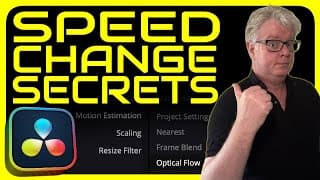
In this episode I take a look at how you can create perfect speed changes to your footage using DaVinci Resolve 18.6. Starting with simple changes to speed a shot up, I show you how adjusting a clip's speed can affect the rest of the timeline, before moving to advanced features like frame interpolation using Optical Flow and motion estimation using Speed Warp. Along the way I also indulge in a spot of mathematics! Chapters: 00:00 - Intro 00:31 - Speed Up 01:38 - Ripple Timeline 02:30 - High Frame Rates 03:39 - Different Frame Rates 04:41 - Slowing Clips 05:44 - Retime and Scaling 06:03 - Frame Blend 06:31 - Optical Flow 07:06 - Render Cache 07:19 - Problems with Optical Flow 08:28 - Motion Estimation 08:55 - Speed Warp #davinciresolve #editing #videoeffects
VERTICAL VIDEO in DaVinci Resolve
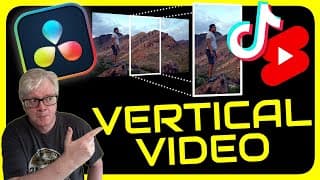
In this episode I show you how you can use the controls in the Cut page in DaVinci Resolve to reframe your 16:9 videos to the vertical or portrait aspect ratio, suitable for uploading to TikTok and creating YouTube Shorts. *** View the final comparison between the 16:9 version and the 9:16 version at https://youtu.be/YzGg3x1o9TA *** Chapters: 00:00 Intro 01:23 Safe Areas 01:54 Applying Clip Colour 03:07 Changing Timeline Aspect Ratio 03:53 Custom Timeline Settings 04:57 Stop and Go to Last Position 05:16 Retime and Scaling settings 06:11 Using Transform Tools 07:47 Reframing with Dynamic Zoom 09:12 Smart Reframe (Studio only) 10:54 Reframing #davinciresolve #verticalvideo #editing

MEDIA PAGE TIPS for DaVinci Resolve
In this episode I show you 5 reasons and 2 Power Tips for loving the Media page in DaVinci Resolve. Chapters: 00:00 - Intro 00:18 - Media Storage 00:39 - Power Tip 1 01:25 - The Clone Tool 02:49 - Importing Options 03:34 - Power Tip 2 04:06 - Audio Meters 05:04 - Manual Syncing #davinciresolve #editing #tips
Automatic Timeline Backups in DaVinci Resolve
In this episode I take a look at how to work with timeline backups in the FREE version of DaVinci Resolve 18.6. Including how to manually create a duplicated timeline and go back to an earlier automatically saved version of any timeline in your project. This episode is an excerpt of a recording of a live Zoom training session. Chapters: 00:00 - Intro 00:27 - Find Current Timeline In Media Pool 02:10 - Restore Timeline Backups #davinciresolve #editing #tipsandtricks
Editing Using Auto Transcription in DaVinci Resolve Studio
In this episode I take a look at how you can use the new Transcription feature in DaVinci Resolve Studio to quickly put together initial sync pulls of your interviews or other dialogue clips for an initial rough cut. Chapters: 00:00 - Intro 00:19 - Transcribe Audio 01:15 - Transcription window 02:08 - Navigating using the Transcription window 02:44 - Editing the Transcription 03:23 - Search and Replace 04:03 - Marking Transcription 05:20 - Create Subclips 05:36 - Transcription window in the Edit page 05:58 - Remove Silent Portions 06:16 - Manually Removing Portions 07:43 - Power Tip #davinciresolvestudio #transcription #editing
Record Audio using Fairlight in DaVinci Resolve
In this episode I show you how you can record audio using the FREE version of DaVinci Resolve for creating your own voiceovers and sound effects. I show you how to patch your microphone to a track, arm the track for recording and record. I also give you tips on where your clip will be found in your DaVinci Resolve project and on your system hard drive. ** NEW!! Voiceover Tool in the Edit and Cut pages in DaVinci Resolve 20 https://www.youtube.com/watch?v=XXxOe2MCCMw&t=109s ** Chapters: 00:00 - Intro 00:18 - Microphone Setup 01:09 - Patching Microphone to Track 02:07 - Arming the Track 02:36 - Recording Destinations 03:35 - Making the Recording #davinciresolve #recordingaudio #voiceover